
3 Ways to Translate Google Forms
Learn the good, better, and best free ways to translate a Google Form
Need to translate a Google Form so respondents can fill it out in their own language? There are a few different ways to translate a form — from a quick browser trick to a fully multilingual solution. Below we break down the three most common approaches so you can pick the one that fits your needs.
Translate a Google Form with Your Browser (Good)
- Navigate to the form you want to translate
- Right-click anywhere on the screen
- Navigate to Translate in the menu
- Select the language you want to translate your form into from the dropdown menu
- Click Translate
- Enjoy your freshly translated form!
✓ Pros
- ✓Quick to use
- ✓Large language selection
- ✓Consistent translations
✗ Cons
- ✗Translation doesn't persist to recipients
- ✗Only exists within your browser window
- ✗Clunky
This is the quickest way to translate a Google Form, but it only works for you — your respondents will still see the original language.
Manually Translate a Google Form (Better)
Step 1: Open Your Google Form
Head over to Google Forms and sign in. From your dashboard, open the form you'd like to translate.
Step 2: Duplicate the Form (Optional)
To preserve the original, make a copy before editing:
- Click the three-dot menu in the top right corner
- Choose Make a copy
- Give the copy a name like "Form (Spanish)" to keep things organized
Step 3: Translate the Title and Description
- Click the form title and replace it with the translated text
- Do the same for the description field beneath it
Step 4: Translate Each Question and Its Options
- Work through each question one by one
- Click into the question text and swap it out for the translation
- For multiple-choice or dropdown questions, translate every answer option as well
Step 5: Add a Language Note in the Description
Google Forms will adapt to the respondent's browser language where possible. Consider adding a short note in the form description letting respondents know what language the form is in.
Step 6: Preview the Form
- Click the eye icon in the top right to open a preview
- Read through the form to catch any missed text or formatting issues
Step 7: Share the Translated Form
- Click the Send button when you're happy with the result
- Distribute via email, a shareable link, or embed it on your site
✓ Pros
- ✓Translations are permanent and visible to all respondents
- ✓Full control over wording and tone
- ✓No browser extensions required
✗ Cons
- ✗Time-consuming for long or complex forms
- ✗Requires a separate form for each language
- ✗Requires knowing your audience's language ahead of time
- ✗Responses are split across multiple forms
Translate Your Google Form with Brella (Best)
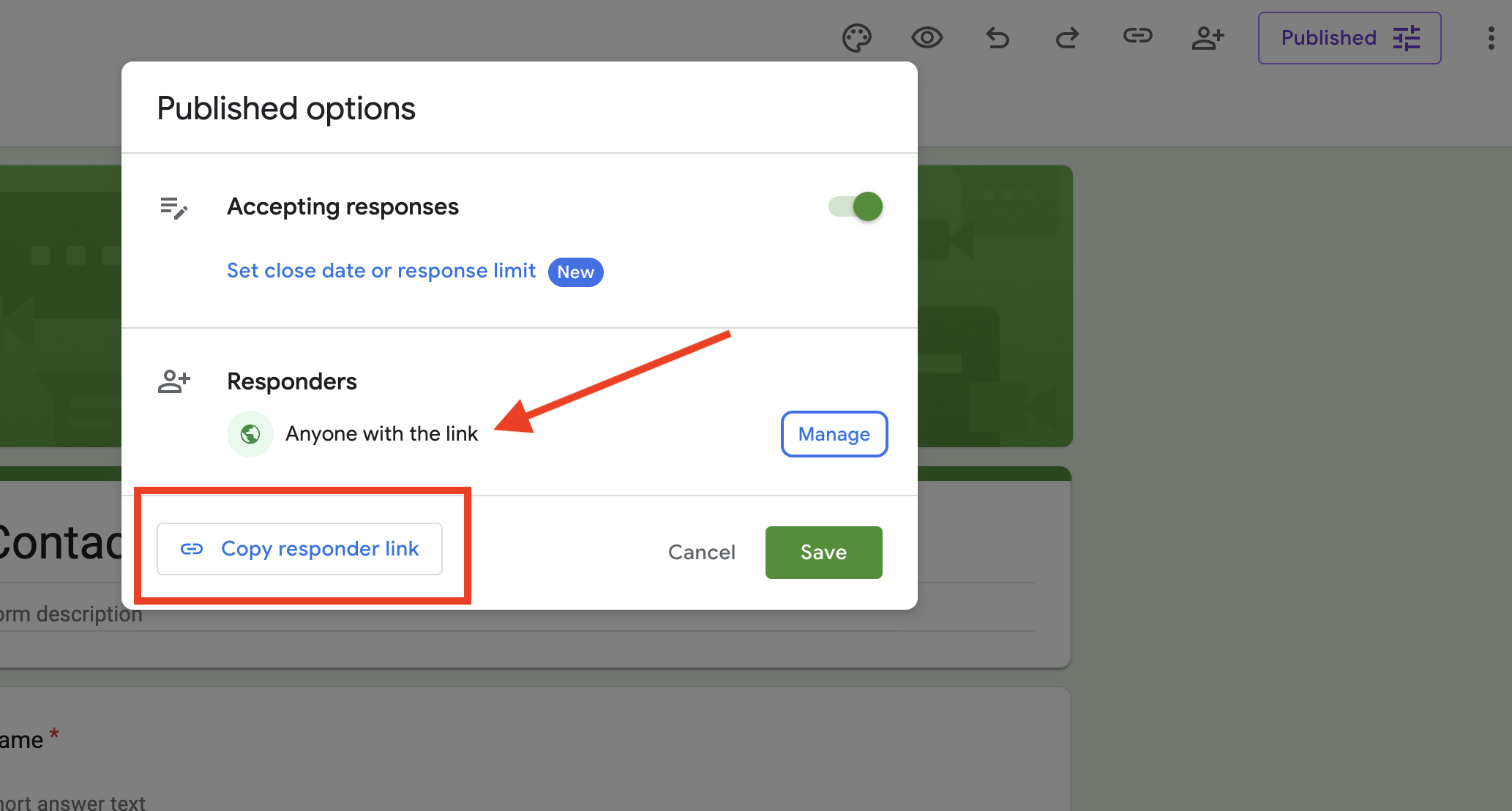
💥 Step 1: Copy Google Form URL
Head over to Google Forms and sign in. From your dashboard, open the form you'd like to translate.
- Publish your form and make sure it's accessible to "Anyone with the link"
- Copy the URL from the browser address bar (you can also use the responder link)
🔄 Step 2: Sync Google Form to Brella Dashboard
- Create a Brella Solutions account or log in to your existing account
- In your dashboard side menu, navigate to Forms -> New +
- Select the "Google Forms" tab
- Paste your copied URL here
- Click Import
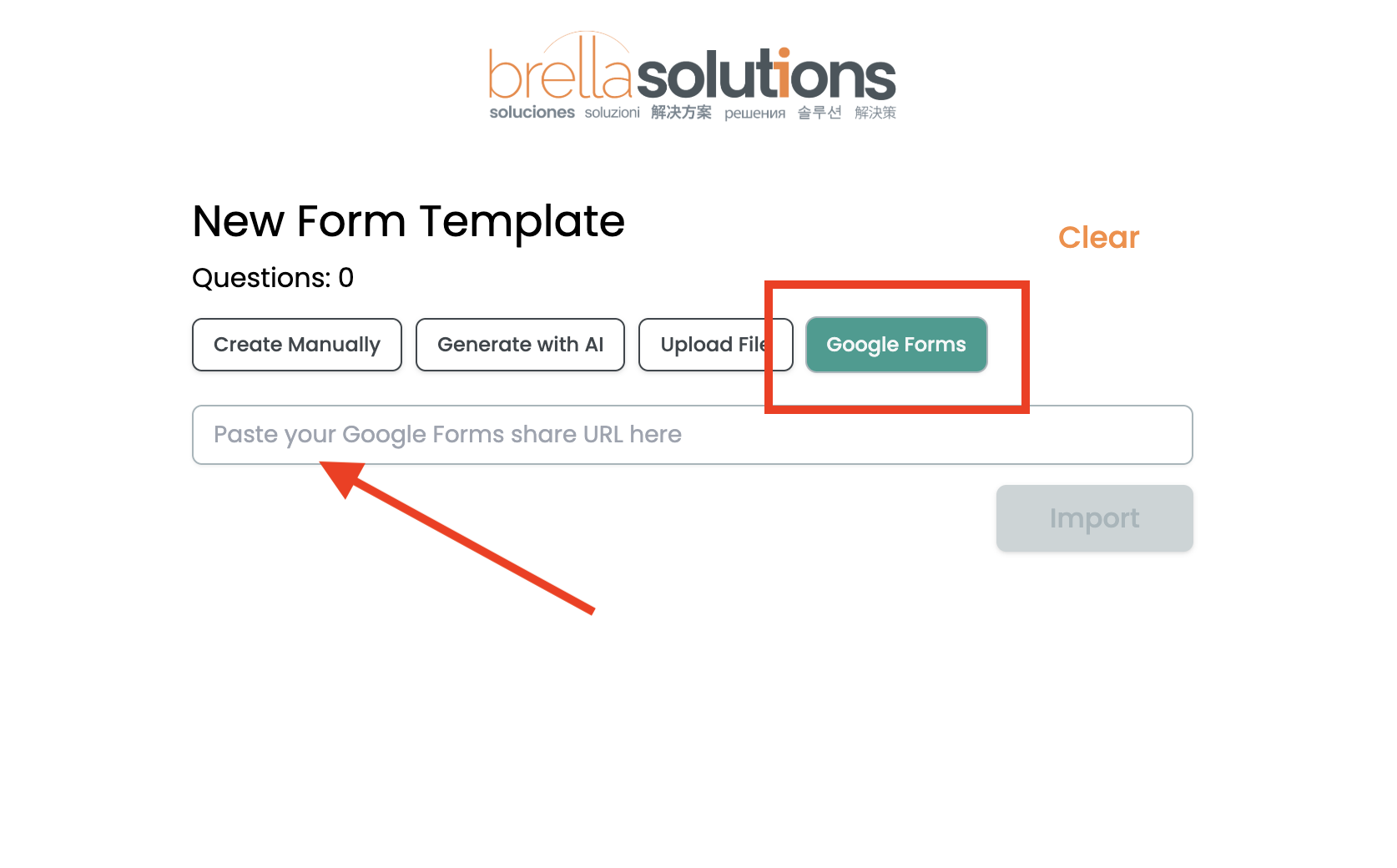
At this point you can further edit the form before translation. Confirm your form got imported correctly.
👍 Step 3: Create Form
Once everything looks good, click the Submit button.
🪄 Step 4: Translate Form
- Navigate to Forms -> Templates
- Click on the form you just created
- A slide menu will pop out. At the bottom left, click "Language +"
- Select "Spanish" and click the Translate button
- Your form will translate in the background. Wait a few seconds and refresh the page
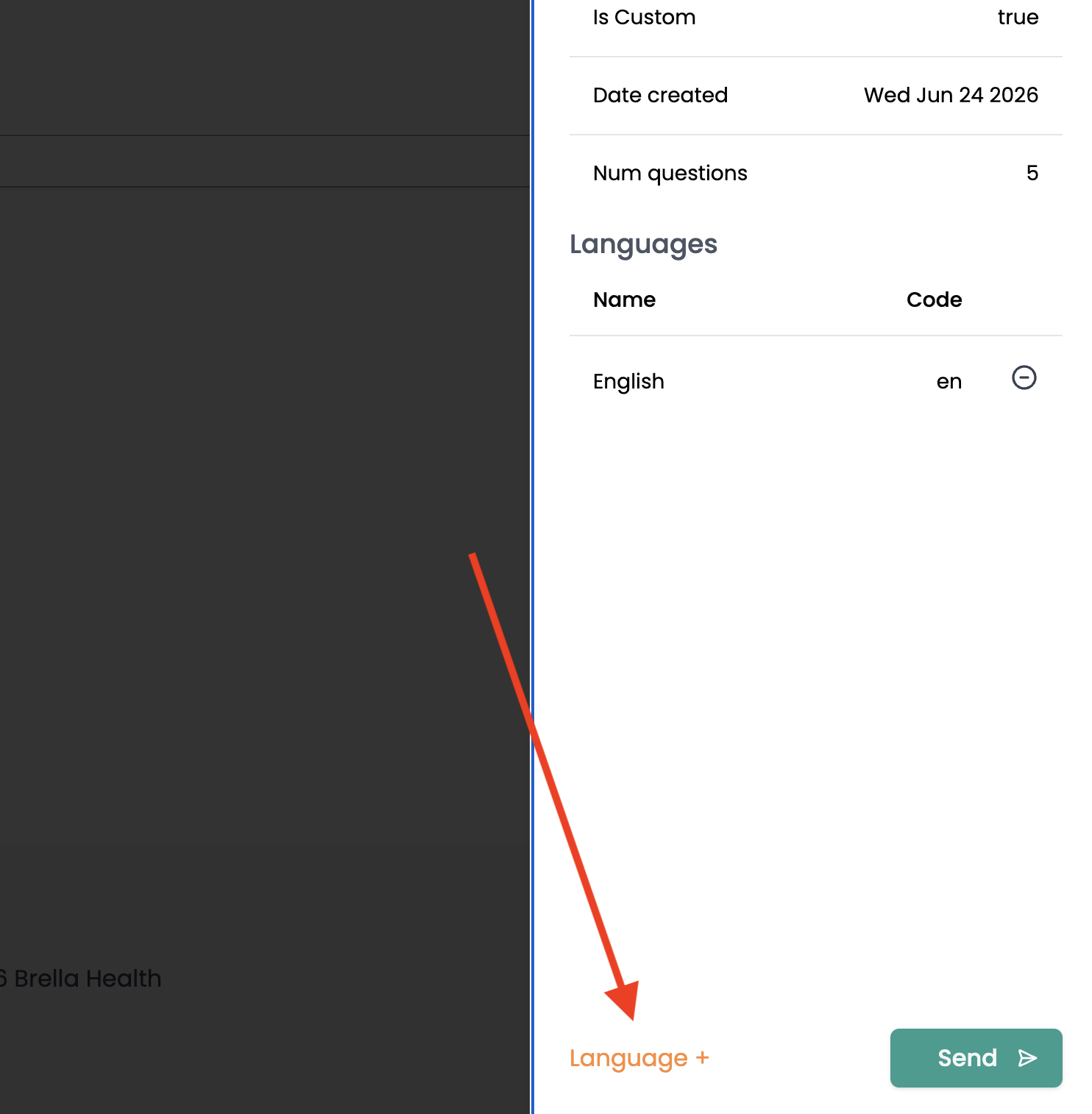
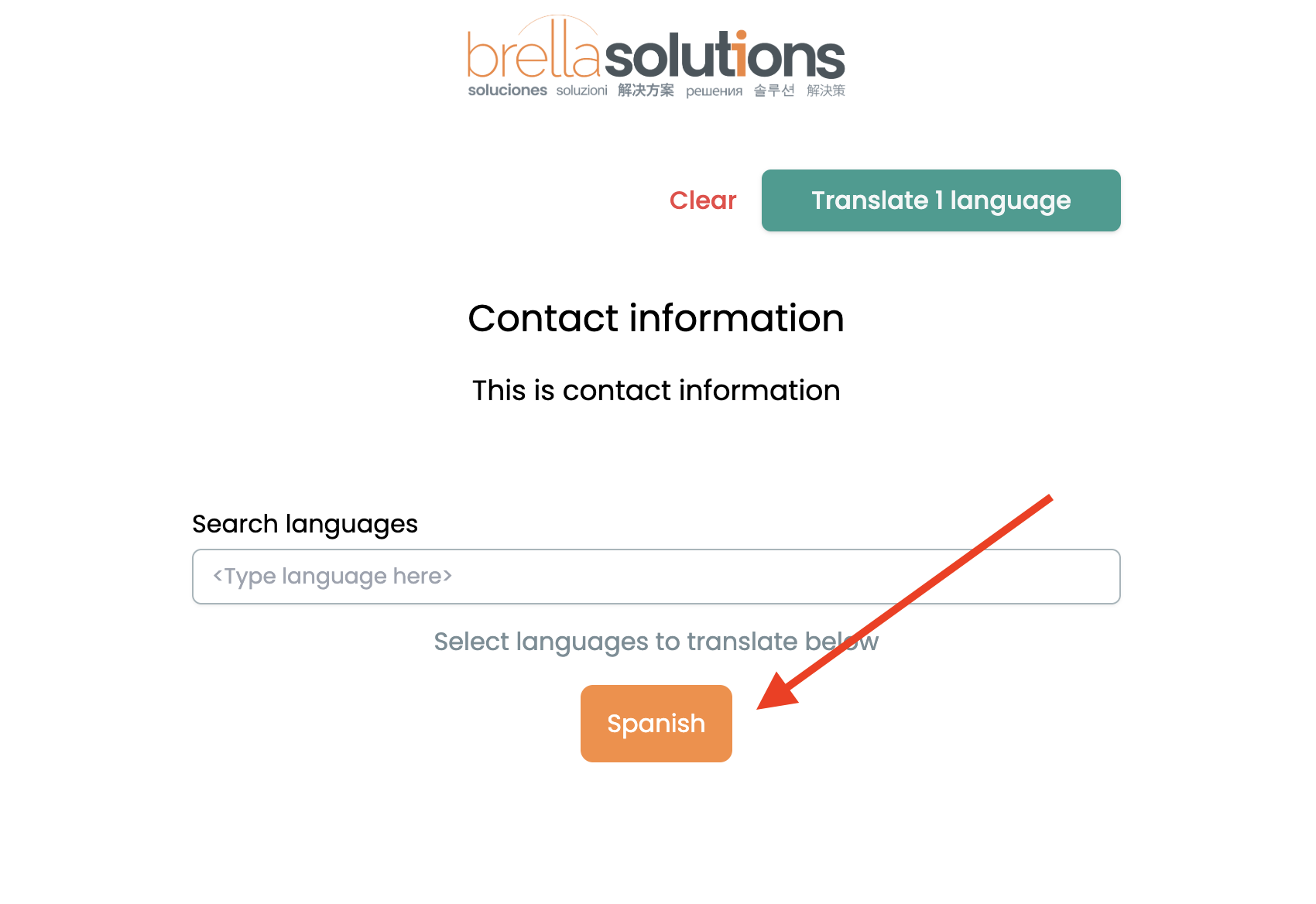
Brella supports over 130 languages. Click here to get more languages
🫡 Step 5: Verify Translation
- Navigate to Forms -> Templates
- Click on the form you just created
- A slide menu will pop out. Select the language you just added
- Verify everything looks good
- Send form without language barriers!🥳
To learn more about sending forms — check out how to send forms in different languages
✓ Pros
- ✓Only manage one form
- ✓Respondents choose form language
- ✓All response data in English by default
- ✓Send forms through email or SMS
✗ Cons
- ✗Requires creating an account
- ✗Only supports spanish out of the box
Stop copy-pasting your Google Form into every language
Import your existing form in seconds, translate it into 130+ languages, and get every response back in English — automatically.
Start Your Free TrialNo credit card required
Leave a comment
No comments yet. Be the first to leave one.